Your IP: Unknown
· Your Status:
Unprotected
To hide your IP address, you need to get the PandaVPN and connect to one of the servers.
Your IP: Unknown
· Your Status:
Unprotected
To hide your IP address, you need to get the PandaVPN and connect to one of the servers.

PandaVPN – Fast and Secure VPN for Apple TV
Version: 9.5.0 Update: 2026.06.15 Supports: tvOS 17.0+
Trusted by users worldwide, PandaVPN gives Apple TV users a fast, secure, and private internet connection designed for the big screen.





Get Started with PandaVPN for Apple TV in 3 Easy Steps

Download & Install
Open the App Store on Apple TV, search for PandaVPN, download the app, and launch PandaVPN for Apple TV.
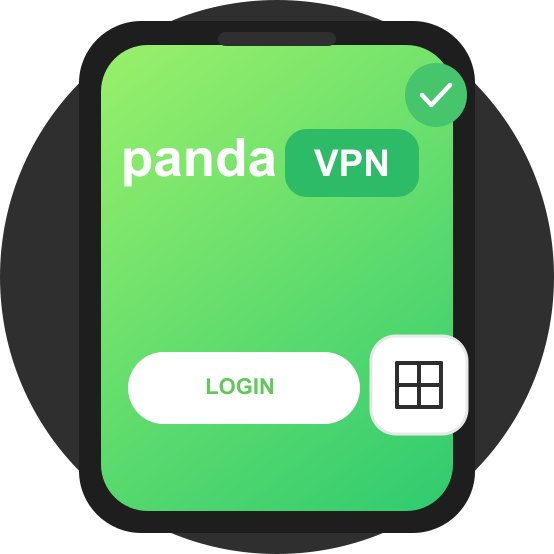
Sign In to Your PandaVPN Account
Sign in with your PandaVPN account on Apple TV, or use QR-code sign-in from your phone for a faster setup experience.

Watch What You Love
After signing in and connecting, enjoy movies, TV shows, live sports, and more on Apple TV with a smoother streaming experience.
Frequently Asked Questions
How do I install PandaVPN on my Apple TV?
Open the App Store on Apple TV, search for PandaVPN, and install the app. PandaVPN for Apple TV requires tvOS 17.0 or later.
How do I sign in to PandaVPN on tvOS?
PandaVPN supports account sign-in on the TV and QR-code sign-in from your phone. The QR-code option is ideal for big-screen setups because it reduces remote typing.
What should I know before using PandaVPN on Apple TV?
Make sure your Apple TV is updated to tvOS 17.0 or later. During your first connection, allow tvOS to create the VPN configuration, then choose Smart Mode or WireGuard Mode based on your network environment.